
Why Showing Sub Collections on Parent Collection Pages Matters
Large eCommerce stores often organise products using category hierarchies. A parent collection groups related product categories, while sub collections help visitors navigate to more specific product types. Displaying sub collections directly on the parent collection page improves both user experience and website structure.
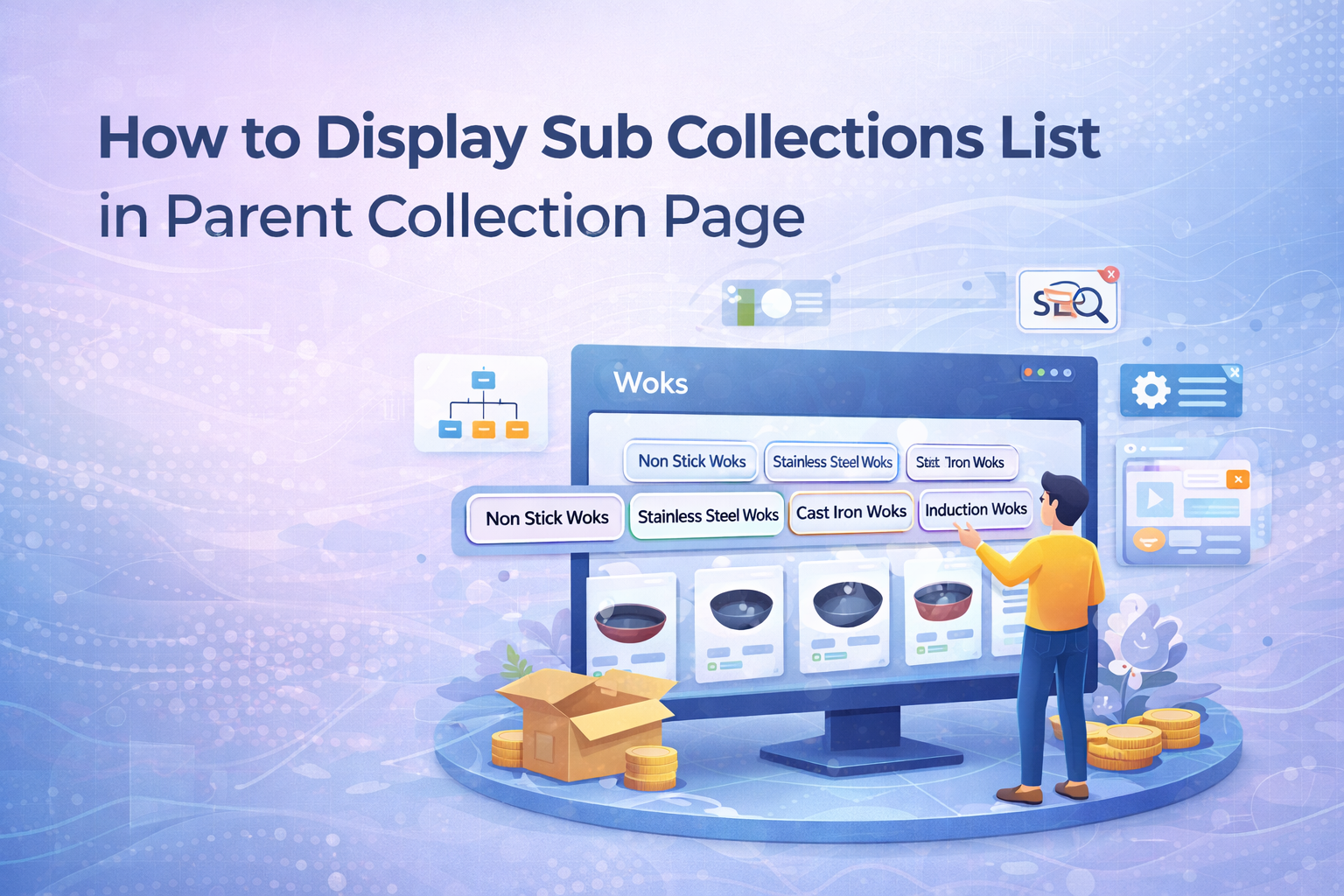
For example, a cookware store may have a parent collection called Woks. Instead of showing only a long list of products, the page can display sub collections such as Non Stick Woks, Stainless Steel Woks, Cast Iron Woks, and Induction Woks. This allows users to quickly navigate to the exact product category they are interested in.
This structure not only improves browsing efficiency for visitors but also creates a clear hierarchy within the website. When collections are organised logically, it becomes easier for users to understand how products are grouped and find the right items faster.
SEO Benefits of Displaying Sub Collections
Displaying sub collections on a parent collection page helps strengthen internal linking and improves how search engines interpret the structure of an eCommerce website. Search engines analyse how pages are connected in order to understand category relationships and determine topical relevance.
When a parent collection links to its sub collections, it creates a clear content hierarchy. This helps search engines understand that the parent collection represents a broader topic, while the sub collections represent more specific product categories within that topic.
- Improves internal linking between related collections
- Strengthens topical relevance for search engines
- Helps search engines crawl category pages more efficiently
- Improves user navigation on large product collections
- Encourages deeper browsing across related product categories
A well-organised collection hierarchy can also reduce bounce rates because users are able to quickly navigate to relevant product categories instead of leaving the site.
Example of Parent Collection and Sub Collections
To understand how this works in practice, consider the following collection structure for cookware products.
- Parent Collection: Woks
- Sub Collections:
- Non Stick Woks
- Stainless Steel Woks
- Cast Iron Woks
- Induction Woks
Instead of forcing visitors to filter products manually, displaying these sub collections directly on the parent collection page provides clear navigation options. Customers can instantly choose the category that best matches their cooking preference or cookware material.

Creating a Metafield for Sub Collections
To dynamically display sub collections on a parent collection page, a collection metafield can be used. Metafields allow you to store additional structured data for collections that can later be used within theme templates.
- Go to your store admin panel.
- Navigate to Settings → Custom Data → Collections.
- Create a new metafield definition.
- Name the metafield something like Sub Collection List.
- Select the type as List of Collections.
- Save the metafield definition.
Once created, this metafield will allow you to assign sub collections directly to the parent collection.

Assigning Sub Collections to the Parent Collection
After creating the metafield, open the parent collection in the collection editor. You will see the metafield section where you can select the sub collections that belong to the parent category.
- Open the parent collection page (for example, Woks).
- Scroll to the metafields section.
- Select the sub collections such as:
- Non Stick Woks
- Stainless Steel Woks
- Cast Iron Woks
- Induction Woks
- Save the collection.
This step allows the parent collection to store a structured list of its related sub collections.
Displaying Sub Collections Using Liquid Code
Once the metafield is assigned, the sub collections can be displayed on the parent collection page using Liquid code. The code retrieves the metafield values and loops through the selected collections.
{% if collection.metafields.custom.subcollection != blank %}


{% for subcollection in collection.metafields.custom.subcollection.value %}


{{ subcollection.title }}


{% endfor %}


{% endif %}
This Liquid loop checks whether the metafield contains any sub collections and then displays each selected collection as a clickable link.
Improving User Navigation with Sub Collection Links
Once implemented, the parent collection page will display a list of related sub collections above the product grid. These links act as quick navigation shortcuts that guide customers to more specific product categories.
For example, a visitor browsing the Woks collection can immediately choose between Non Stick Woks, Stainless Steel Woks, Cast Iron Woks, or Induction Woks without scrolling through unrelated products. This significantly improves the browsing experience, especially for stores with large product inventories.
Clear category navigation not only improves usability but also helps search engines understand the relationship between collection pages, which strengthens the overall SEO structure of the website.
Final Thoughts
Displaying sub collections on parent collection pages is a simple but powerful improvement for both usability and SEO. By combining structured metafields with Liquid templates, stores can create flexible collection hierarchies that are easy to manage and scale as the catalogue grows.
A well-structured category system makes it easier for customers to navigate products and allows search engines to better interpret the relationships between collections. Over time, this structured navigation can contribute to improved indexing, stronger topical relevance, and better overall website performance.