
Adding a Free Shipping badge to products is one of the easiest ways to increase conversions and improve user experience. Instead of manually tagging products, you can automatically display a badge when a product price exceeds a specific amount — for example, Free Shipping Above $150.
In this guide, you’ll learn how to dynamically show a free shipping label on product pages using simple Liquid code + CSS.
Why Use a Dynamic Free Shipping Badge?
- Encourages higher cart value (customers add more to qualify)
- Improves product page visibility
- Creates urgency and value perception
- Automates logic — no need to manually tag products
Step 1: Add Liquid Code for Free Shipping Badge
You need to insert a condition that checks product price and displays the badge if it exceeds your threshold (e.g. $150).
{% if product.price >= 15000 %}

    + Free Shipping

{% endif %}
Note: Shopify uses cents, so 15000 = $150.
Step 2: Find the Correct Product Liquid File
The file location depends on your Shopify theme. Common places include:
- main-product.liquid
- product-template.liquid
- product.liquid
Open your theme files and locate where the price or Add to Cart button is displayed. Place the above Liquid code near that section.
Step 3: Position the Badge (Best Practice)
For maximum visibility, place the badge near:
- Product price
- Add to Cart button
- Above payment options
This ensures customers immediately notice the offer.
Example Output on Product Page
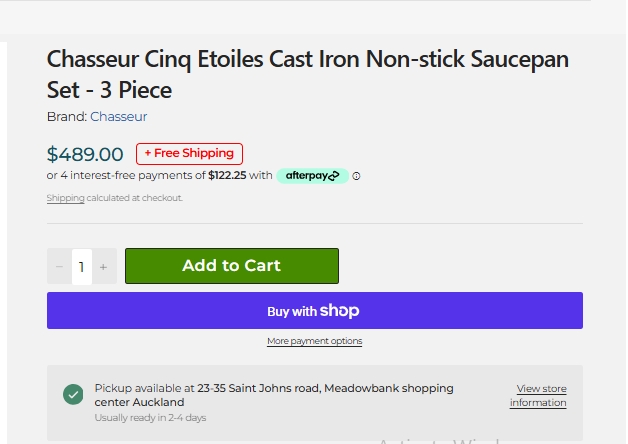
Below is an example of how the free shipping badge appears when the product price is above the threshold:
Step 4: Add CSS for Better Design
Use the following CSS to style your badge and make it stand out:
.free-shipping-badge {
  display: inline-block;
  background: #fff0f0;
  color: #e60023;
  border: 1px solid #e60023;
  padding: 6px 12px;
  font-size: 13px;
  font-weight: 600;
  border-radius: 6px;
  margin-left: 10px;
}
You can customise colors based on your brand.
Pro Tips to Maximise Results
- Use clear threshold messaging (e.g. Free Shipping Above $150)
- Combine with cart progress bar for better conversions
- Test different badge colors (red, green, blue)
- Keep badge close to price or CTA
Final Thoughts
A dynamic free shipping badge is a simple but powerful enhancement for your Shopify store. By automating the logic using Liquid, you ensure consistency across products while encouraging higher-value purchases.
Once implemented, this small change can significantly improve your store’s conversion rate and overall user experience.