
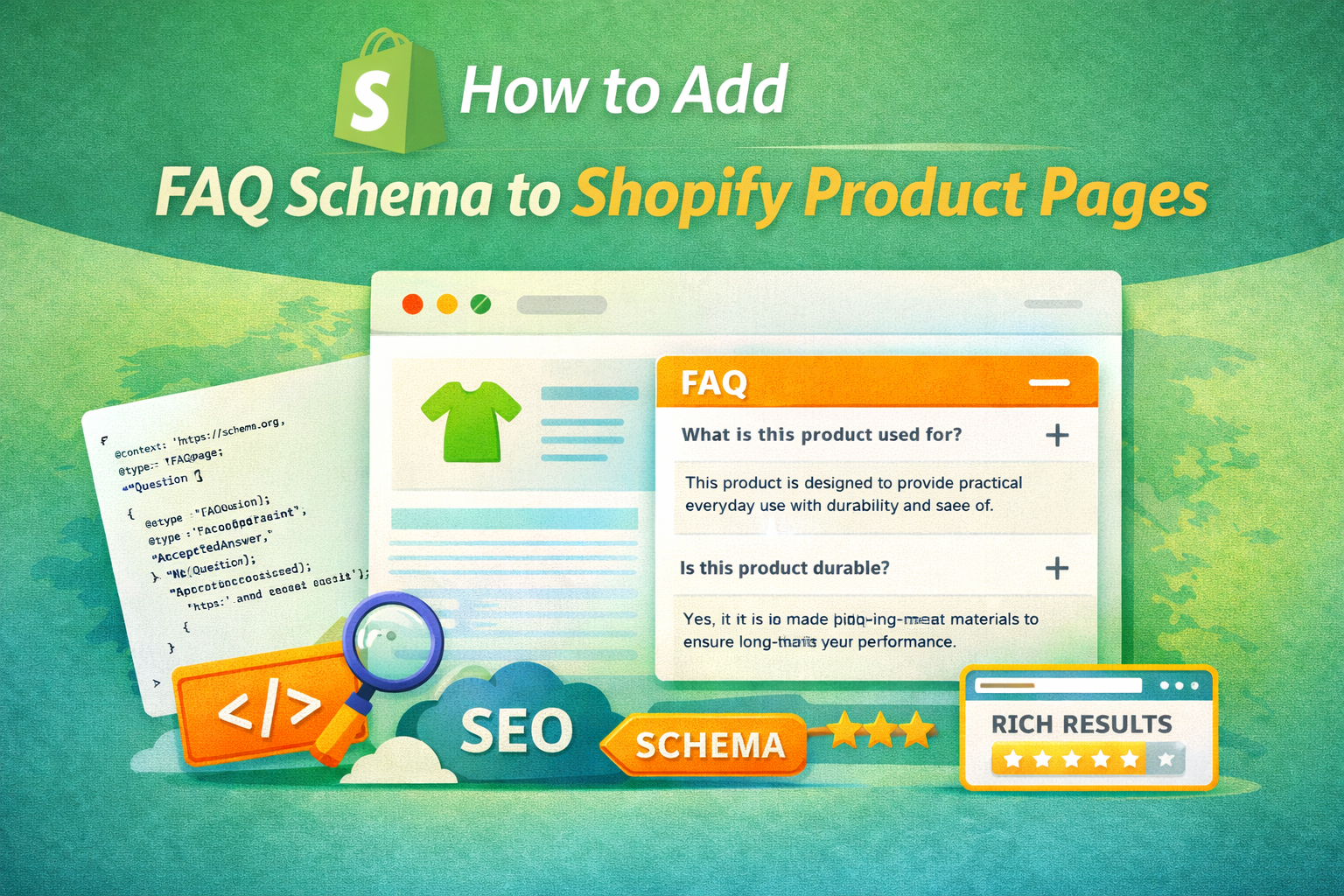
Adding FAQ schema to your Shopify product pages is one of the most effective ways to improve visibility in search results. It helps search engines understand your content better and can display rich results like expandable FAQs directly in Google, increasing click-through rates.
This guide explains how to add FAQ schema to Shopify product pages using a clean, SEO-focused approach that aligns with modern search guidelines.
What is FAQ Schema?
FAQ schema is a type of structured data that allows you to mark up frequently asked questions and answers on your page. It helps search engines present your content in a more interactive and informative way.
- Improves visibility in search results
- Enhances user experience
- Increases click-through rates
- Provides clear context to search engines
Why Add FAQ Schema to Shopify Product Pages?
Product pages often have common customer questions related to usage, shipping, returns, and specifications. Adding FAQ schema allows you to answer these directly in search results.
- Builds trust with potential customers
- Reduces customer support queries
- Improves SEO performance
- Supports voice search queries
Step 1: Create Relevant FAQ Content
Start by identifying the most common questions your customers ask.
- Product usage and benefits
- Shipping and delivery details
- Returns and warranty information
- Material and specifications
Ensure each answer is clear, concise, and helpful. Avoid adding unnecessary or repetitive questions.
Step 2: Add FAQ Section to Product Page
Before adding schema, your FAQs should be visible on the page.
- Add a FAQ section below product description
- Use collapsible or accordion layout for better UX
- Keep content readable and structured
Step 3: Add FAQ Schema Markup (JSON-LD)
Use JSON-LD format to implement FAQ schema in Shopify. Add the following code inside your product template (theme.liquid or product.liquid):
{
  "@context": "https://schema.org",
  "@type": "FAQPage",
  "mainEntity": [
    {
      "@type": "Question",
      "name": "What is this product used for?",
      "acceptedAnswer": {
        "@type": "Answer",
        "text": "This product is designed to provide practical everyday use with durability and ease of handling."
      }
    },
    {
      "@type": "Question",
      "name": "Is this product durable?",
      "acceptedAnswer": {
        "@type": "Answer",
        "text": "Yes, it is made from high-quality materials to ensure long-lasting performance."
      }
    }
  ]
}
Wrap this JSON inside a <script type="application/ld+json"> tag when adding it to your theme.
Step 4: Add Schema to Shopify Theme
To implement the schema properly:
- Go to Online Store → Themes → Edit Code
- Open product template file (product.liquid or main-product.liquid)
- Paste schema code before closing </body> or inside product section
Step 5: Test Your FAQ Schema
After adding schema, always test it to ensure it is working correctly.
- Use Google Rich Results Test
- Check for errors or warnings
- Validate structured data
Best Practices for FAQ Schema
- Ensure FAQ content is visible on the page
- Keep answers clear and relevant
- Avoid duplicate or misleading questions
- Update FAQs regularly based on customer queries
- Do not overuse schema unnecessarily
Common Mistakes to Avoid
- Adding schema without visible FAQ content
- Using irrelevant or keyword-stuffed questions
- Incorrect JSON format
- Duplicating FAQ schema across multiple pages without variation
Advanced Tip: Dynamic FAQ Schema with Metafields
For scalable stores, you can use Shopify metafields to dynamically generate FAQs for each product.
- Create custom metafields for questions and answers
- Output them dynamically in product template
- Generate schema based on metafield values
This approach helps maintain unique and scalable content across your store.
Conclusion
Adding FAQ schema to Shopify product pages is a powerful SEO strategy that enhances visibility, improves user experience, and increases engagement. By combining structured data with meaningful content, you can create product pages that perform better in search and provide real value to users.
Focus on relevance, accuracy, and user intent to get the best results from FAQ schema implementation.
Frequently Asked Questions
Does FAQ schema improve SEO rankings?
FAQ schema does not directly boost rankings but improves visibility and click-through rates by enhancing search results.
Can I add FAQ schema without coding?
Yes, you can use apps or page builders, but manual implementation gives better control and performance.
Where should I place FAQ schema in Shopify?
It should be placed within the product template file, ideally near the bottom or within the product section.
How many FAQs should I add?
Add only relevant FAQs, typically 3–5 high-quality questions that provide real value to users.
Is FAQ schema supported by all themes?
Yes, FAQ schema works with all Shopify themes as long as it is correctly implemented in the code.