
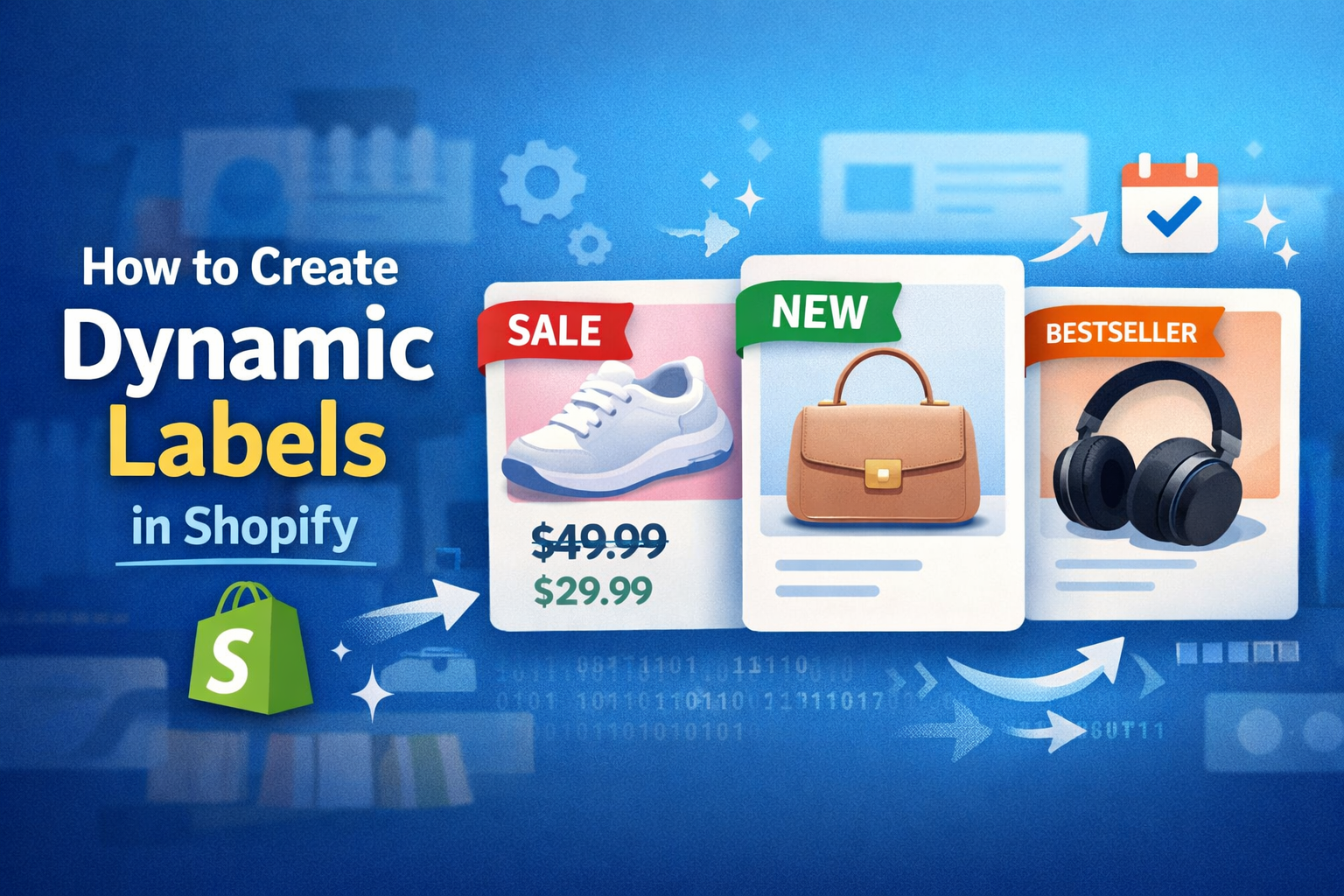
How to Create Dynamic Labels (Sale, New, Bestseller) in Shopify
Dynamic product labels like Sale, New, and Bestseller are powerful conversion tools in Shopify stores. These labels instantly communicate value, urgency, and popularity to customers, helping improve click-through rates and boost sales.
In this guide, you’ll learn how to create fully dynamic labels in Shopify using reliable methods that scale with your store. This approach is based on real-world Shopify implementation practices, ensuring performance, flexibility, and long-term usability.
Why Dynamic Labels Matter for Your Store
Static labels require manual updates and can quickly become outdated. Dynamic labels, on the other hand, automatically update based on product data, saving time and maintaining accuracy.
- Improve conversions: Highlight discounts and trending products instantly
- Create urgency: “Sale” labels trigger faster purchase decisions
- Build trust: “Bestseller” shows social proof
- Reduce manual work: Automation eliminates repetitive tasks
Method 1: Create Sale Label (Automatic Discount Detection)
Shopify automatically stores both price and compare-at price. You can use this to display a Sale label dynamically.
- Go to your theme file: product-card.liquid or card-product.liquid
- Add the following logic:
{% if product.compare_at_price > product.price %}
  <span class="product-label sale">Sale</span>
{% endif %}
This ensures the label appears only when a product is discounted, making it fully automated.
Method 2: Create “New” Label Based on Publish Date
You can tag products as “New” based on how recently they were added to your store.
- Use product published date
- Set a timeframe (e.g., 30 days)
{% assign new_product_days = 30 %}
{% assign current_time = 'now' | date: '%s' %}
{% assign publish_time = product.published_at | date: '%s' %}
{% assign diff = current_time | minus: publish_time | divided_by: 86400 %}

{% if diff < new_product_days %}
  <span class="product-label new">New</span>
{% endif %}
This automatically marks recently added products without manual tagging.
Method 3: Bestseller Label Using Tags
Shopify doesn’t automatically assign “bestseller” status, so the most reliable approach is using product tags.
- Add tag bestseller to selected products
- Use conditional logic in your theme:
{% if product.tags contains 'bestseller' %}
  <span class="product-label bestseller">Bestseller</span>
{% endif %}
This gives you full control over which products display the label.
Best Practice: Combine Multiple Labels
A product may qualify for multiple labels (e.g., Sale + Bestseller). Instead of limiting display, allow multiple badges but control priority visually.
- Use different colors for each label
- Limit to 2–3 labels to avoid clutter
- Prioritize Sale over others for conversions
Recommended CSS for Label Styling
Use clean and consistent styling to ensure labels stand out without affecting UX.
.product-label {
  position: absolute;
  top: 10px;
  left: 10px;
  padding: 5px 10px;
  font-size: 12px;
  font-weight: bold;
  border-radius: 20px;
  color: #fff;
}

.product-label.sale { background: #e63946; }
.product-label.new { background: #2a9d8f; }
.product-label.bestseller { background: #f4a261; }
Common Mistakes to Avoid
- Using static labels that don’t update automatically
- Displaying too many badges on one product
- Not testing mobile responsiveness
- Hardcoding labels instead of using dynamic conditions
Final Thoughts
Dynamic labels are a small but highly effective feature that can significantly impact your Shopify store’s performance. When implemented correctly, they improve user experience, highlight key products, and drive higher conversions.
By using Shopify’s built-in data like pricing, tags, and publish dates, you can create a scalable labeling system that runs automatically—saving time while increasing sales efficiency.